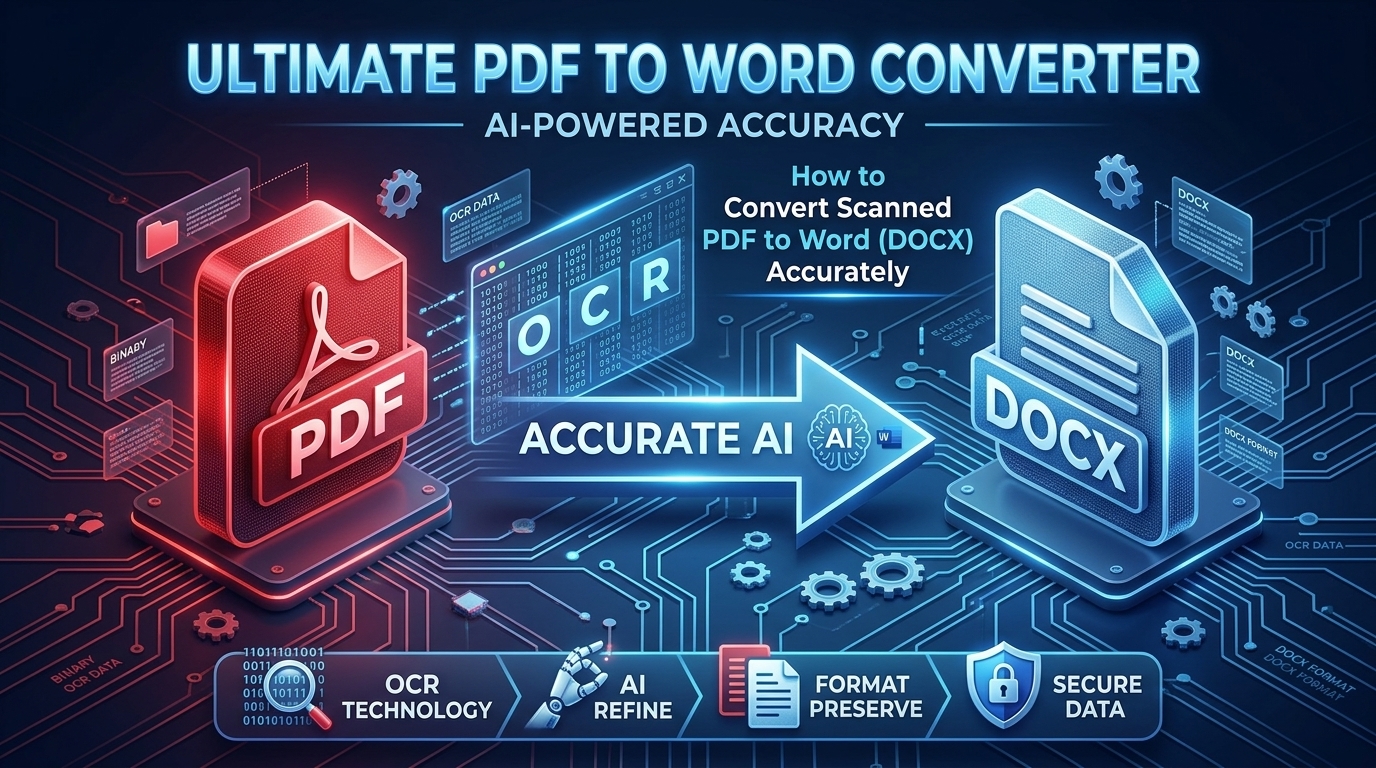
Converting PDF documents into editable Microsoft Word (DOCX) files is essential when you need to update contracts, modify text, or repurpose archived reports. Modern conversion tools utilize sophisticated recognition pipelines to maintain original fonts, tables, and layouts.
Native PDFs vs. Scanned Documents (OCR)
Understanding your source file ensures optimal conversion accuracy:
- Native Digital PDFs: Generated directly from text editors. Character encoding and vector layouts transfer instantly into Word without loss.
- Scanned Image PDFs: Flattened graphic scans that require Optical Character Recognition (OCR) algorithms to analyze pixels and reconstruct readable text characters.
Key Best Practices for Clean Conversions
- Ensure High-Resolution Scans: Provide source files with at least 300 DPI resolution to maximize OCR character accuracy.
- Check Complex Multi-Column Layouts: Review imported sidebars and table boundaries after conversion to verify alignment.
- Preserve Document Privacy: Choose tools with automated data deletion policies so temporary files are removed after processing.
Comments (0)
Leave a Comment